 PlanSwift
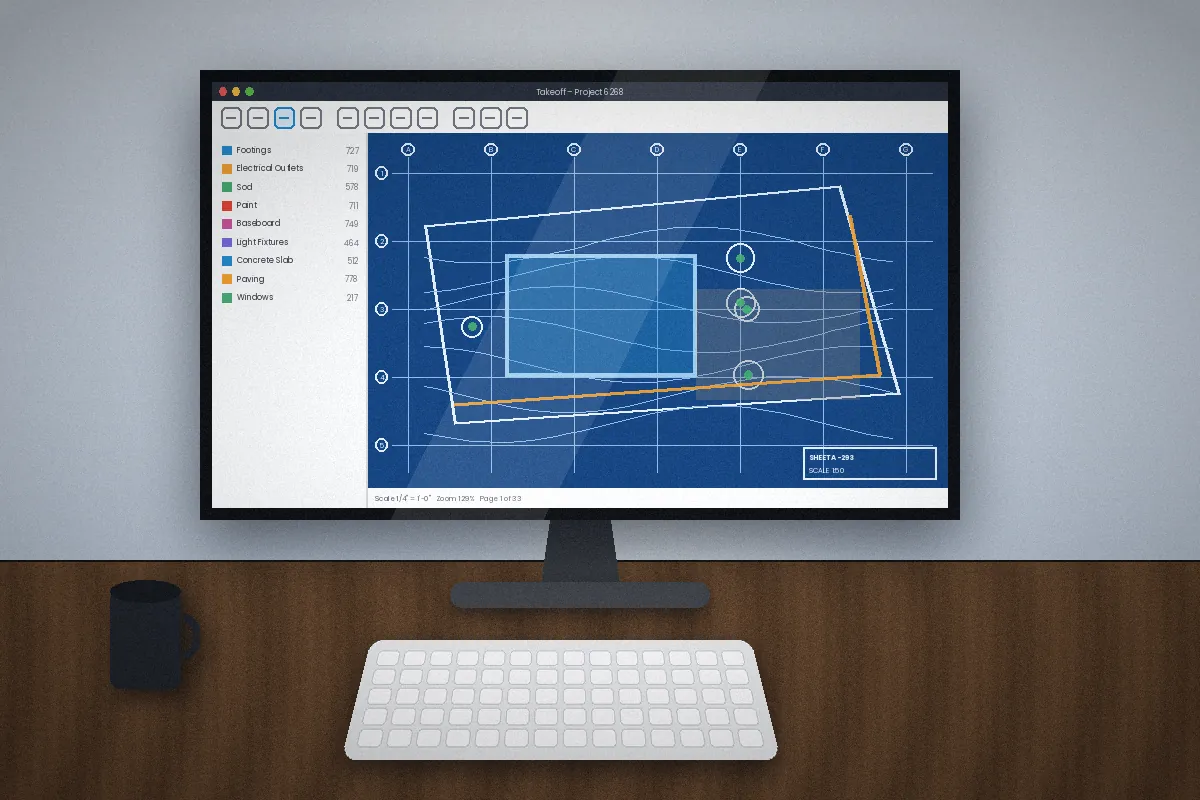
Most PlanSwift problems fall into a handful of familiar categories. Working through them methodically, from the simplest explanation to the least likely, resolves the majority without a support ticket. This article groups the common issues and the checks that usually settle them.
Installation Fails or Stops Early
- Permissions. Run the installer with Run as administrator. Standard accounts cannot write to the folders the program needs.
- Corrupted download. Use the expected details for your exact release and verify the installer through its authorised source.
- Security software. Some antivirus tools quarantine installers silently. Review the alert and ask IT to investigate the verified file.
- Unsupported environment. Servers, Remote Desktop hosts and Home editions of Windows are outside the developer's tested configurations.
Activation Does Not Complete
Activation needs an internet connection. On company networks, a firewall or proxy may block it; ask IT to allow the program. If the licence was used on another computer, it may need to be released there first. Make sure the system date and time are correct, since licensing checks can fail when the clock is badly wrong.
The Excel Link Will Not Connect
- Confirm that a desktop copy of Excel is installed and opens on its own, without PlanSwift.
- Close all Excel windows and check Task Manager for background Excel processes.
- Dismiss any pending Excel dialogs, such as document recovery or sign-in prompts.
- Repair Office through Settings > Apps if the problem persists, then restart the computer.
Quantities Look Wrong
Incorrect quantities can arise from scale, units, traced geometry or estimating formulas. Check that each page has its own scale and that it matches the drawing. Remember that only PDF and TIF pages use the built-in scales; other formats require manual calibration. Measure a printed dimension with the linear tool to confirm the setting.
Drawings Are Slow to Load or Pan
- Close other heavy programs, particularly additional Excel workbooks and browsers with many tabs.
- Prefer TIF or vector PDF over very high-resolution scans.
- Store active jobs on a local SSD rather than a network drive.
- Use the Windows architecture supported for your release and workload.
- Consider more RAM if large jobs are routine; 16 GB is a comfortable figure.
Text or Dialogs Display Oddly
The software is designed for and tested on US-English Windows. Other regional settings can cause minor display irregularities, such as clipped labels or unexpected number formats. Display scaling above 100 per cent on high-resolution laptops can also affect layout; adjusting the scaling setting often helps.
When to Contact Support
If a problem survives these checks, gather the details before contacting the developer's support team: the PlanSwift version, the Windows edition and build, the exact error message and the steps that reproduce it. A clear description usually shortens the exchange considerably.
Preserve the Job Before Investigating
Before making changes, save the work if possible and create a suitable backup through the application's documented process. Keep the original job separate from experiments. Troubleshooting should reduce uncertainty without putting the only copy of a tender at risk. If the application is unresponsive, record what was happening before deciding how to close it.
Avoid beginning with deletion, a full reinstall or wholesale changes to security settings. Those actions can remove useful evidence and introduce new variables. First establish whether the problem affects one job, one drawing, one user account or the entire workstation. This simple classification often narrows the investigation more effectively than trying several unrelated fixes. Keep a short note of each change and the result it produced.
Describe the Symptom Precisely
Replace broad descriptions such as not working with an observable sequence. Identify the command used, the file involved, the expected result and what happened instead. Note whether an error appears immediately, after a delay or only when the job is reopened. Include the full software version and Windows details. Two failures that look similar can have different causes when their timing and scope are examined.
Try to reproduce the problem on a disposable copy using the smallest useful example. If an import fails on one page, test that page separately where document permissions allow. If an assembly gives an unexpected result, reduce it to the part or input that demonstrates the discrepancy. A focused example is easier to share than an entire commercially sensitive estimate.
Use a Comparison to Isolate the Cause
Comparisons give troubleshooting a direction. Open another known-good job on the same workstation, or test the affected drawing in a normal viewer. If all other jobs behave correctly, concentrate on the affected data before changing the entire installation. If the failure occurs in every job, investigate the application environment and recent changes. Keep the comparison as similar as practical so that the difference has a useful interpretation.
Change one factor at a time. For example, testing a simple local copy can help distinguish a file-access problem from a problem within the drawing. Changing the file location, software version, user account and workbook simultaneously may produce a working result without explaining why. A controlled test is more valuable because it supports a repeatable remedy and allows the team to recognise the same problem later.
Investigate Installation and Activation Separately
Installation concerns the program files and components on the computer; activation concerns authorised access to the product. An installer completing successfully does not establish that a licence is available for that release. Record the exact activation message and check entitlement before repeating setup. Retired software may have licensing limitations that cannot be solved by downloading the same historical installer again.
For installation failures, check the source of the file, the supported operating system and the permissions required by the documented procedure. A file size alone is not a reliable integrity or authenticity check. If protection software intervenes, read the alert and involve IT rather than automatically restoring the file. When network access is the issue, use the developer's stated requirements instead of opening broad firewall access without evidence.
Trace Incorrect Quantities Through the Calculation
Begin with a known dimension on the source page. Verify the scale and units, then inspect the selected geometry. Check whether an area boundary crosses an opening, a line omits a segment or a count includes a symbol from a detail rather than the installation plan. Not every quantity error is a scale error. Separating drawing interpretation from geometry makes the investigation more accurate.
If the measured quantity is correct but the material total is not, follow the assembly formula. Review height, spacing, coverage, deductions, waste and rounding in sequence. If that total is also correct, continue into the pricing workbook or report. This chain identifies where the discrepancy first appears. Correcting a downstream price to compensate for an upstream quantity error hides the cause and can make later revisions much harder to trust.
Diagnose Slow Performance with a Representative Test
Note whether the delay occurs while opening a job, moving around a drawing, applying an assembly or saving. Different stages depend on different parts of the environment. Compare a normal page with the affected page and observe whether other applications are consuming significant resources. Check available disk space and the location of active files. A network delay or unusually large scan may resemble a general hardware problem.
Do not reduce image quality indiscriminately to improve speed. Fine dimensions and symbols still need to remain readable for reliable takeoff. Preserve the original drawing and test an appropriate alternative source or conversion on a copy. Where hardware resources appear constrained, compare the workstation against the requirements for the installed release and test the actual workload. Performance advice should follow the observed limitation rather than an assumed universal upgrade.
Check Excel Problems with a Minimal Workbook
Open Excel independently and confirm that an ordinary workbook can be created, saved and reopened. Dismiss pending dialogs and check the integration components required for the installed releases. Then test a small takeoff with a simple workbook. If that succeeds, examine the company template's formulas, protection and assumptions before changing the main application. A successful quantity transfer and a correct final price are separate checks.
When values appear stale, confirm the intended refresh procedure and the selected job. Distinguish a static export from a live connection, and make sure the expected item is linked to the intended destination. Avoid overwriting imported values as a temporary fix without documenting the change. It can conceal a connection failure and may be lost during the next update, leaving the estimate inconsistent with its measured basis.
Verify the Remedy and Record What Changed
After a proposed fix, repeat the exact steps that originally failed. Use the same drawing or a controlled copy, and confirm that the expected result now occurs. Then check the essential surrounding workflow, including saving and reopening where relevant. A different task succeeding does not prove the original problem has been resolved. Record any limitation that remains rather than describing a partial workaround as a complete repair.
Prepare a concise support record if further help is needed. Include the versions, error text, reproduction steps, scope of the problem and tests already completed. Remove passwords and unrelated project information from attachments. Once the issue is resolved, keep the useful explanation with the workstation or project notes. A short, accurate record helps colleagues avoid repeating unsuccessful steps and turns one troubleshooting exercise into practical knowledge for future work.
FAQs
Should I reinstall immediately when an error appears?
First preserve the job and identify the scope of the failure. A controlled comparison may reveal a drawing, account or workbook issue that reinstallation would not resolve.
How can I confirm that a fix worked?
Repeat the original failing steps and check the expected result. Then test essential surrounding actions, including saving and reopening.
What should I send to support?
Provide the full versions, exact message, reproduction steps and a suitable minimal example where permitted. Keep credentials and unrelated confidential information out of attachments.
Conclusion
Methodical troubleshooting resolves most PlanSwift issues quickly. Permissions, activation access, a healthy desktop Excel installation and correct page scales account for the great majority of problems, and adequate hardware addresses most of the rest.