 PlanSwift
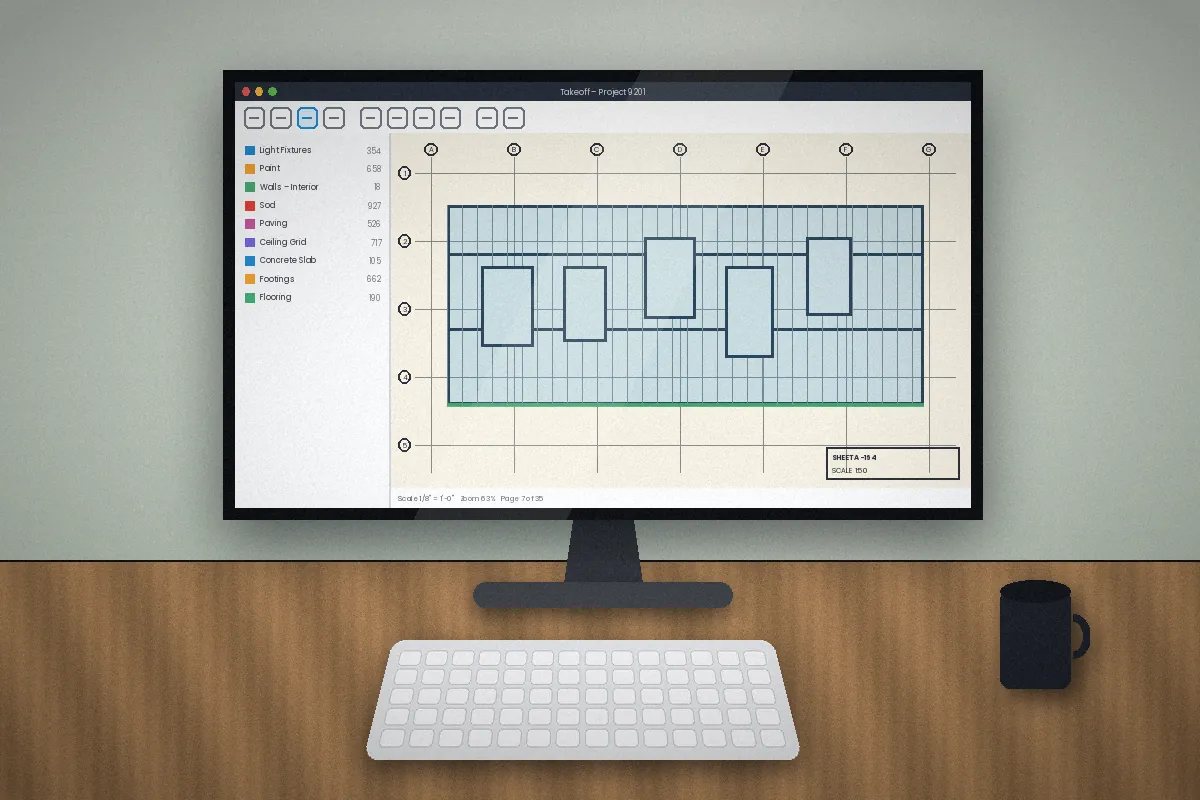
PlanSwift handles drawing images, measurements and estimating data, often alongside other desktop applications. A computer that handles office work comfortably may still feel sluggish on a forty-page plan set. Knowing the published requirements, and the reasoning behind them, helps you buy or configure the right machine.
Operating System
The developer recommends Windows 11 Pro or Enterprise in its 64-bit form, with every Windows update installed. Confirm the supported operating systems for your exact release rather than relying on older guidance. Two points deserve attention:
- Home editions are not part of the developer's testing. The program may install, but behaviour cannot be guaranteed.
- Retired versions of Windows, such as Windows 7 and 8, are no longer tested, and older PlanSwift releases tied to them have been withdrawn.
Processor
An Intel Core i5 or i7 running in 64-bit mode is the stated recommendation, while a dual-core Intel or AMD processor is the practical floor. Assess processor suitability with representative drawings and the tools you intend to use.
Memory
Published guidance for PlanSwift 10.3 and 11 specifies 8 GB of memory as the minimum and recommends 16 GB or more. Large drawings and supporting applications may justify additional headroom. Do not apply an older 4 GB specification to a newer release.
Display
The minimum resolution is 1024 × 768, which is workable but cramped. Estimators gain far more from screen space than from almost any other upgrade: a large monitor, or two monitors with the drawing on one and the project list on the other, reduces zooming and scrolling throughout the day.
Supporting Software
| Program | Purpose | Notes |
|---|---|---|
| Microsoft Excel | Excel export and import features | Must be a local desktop installation that handles .xlsx and .xltx |
| Microsoft Outlook | Sending projects to colleagues | Optional, used by the export and send routine |
| PDF reader | Checking plans before import | Optional, useful for spotting damaged files |
Environments to Avoid
The developer notes known issues with installation on servers and Remote Desktop hosts, and support for those set-ups is limited. Apple computers cannot run PlanSwift natively; they need Windows through Boot Camp or virtualisation, which is covered in a separate article in this guide.
Where to Spend
- Screen space first. Choose a readable arrangement suited to your drawing and workbook workflow.
- Memory second. Adequate memory helps when the working set exceeds available RAM.
- A solid-state drive third. Plans and job files open noticeably faster from an SSD.
Read Requirements as a Version-Specific Checklist
System requirements belong to a particular product release, not to the application name for all time. Keep the full PlanSwift version beside the hardware assessment. An older installer, a newer desktop release and optional tools may have different expectations. Record the Windows edition and architecture as well as the processor and memory. This turns a vague question about whether the computer is powerful enough into a checklist that IT can evaluate.
Distinguish minimum requirements from recommended resources. A minimum describes a lower boundary for basic operation under the vendor's stated conditions; it does not promise a comfortable experience with every drawing set. Recommendations provide more headroom, but even they should be tested against the work you actually perform. An estimator opening complex scanned drawings while running several workbooks has a different workload from someone measuring a few straightforward pages.
Assess Your Real Estimating Workload
List the applications normally open during a tender session. PlanSwift may share the computer with desktop Excel, a document viewer, email, a browser and communication tools. Large files in several programs can compete for resources even when each program is individually supported. Judge the workstation as a working environment rather than evaluating PlanSwift in isolation on an otherwise empty desktop.
Choose representative project files for assessment. Include both a typical job and one towards the demanding end of your workload. Observe opening time, navigation, saving and the response when switching between applications. Record what feels slow and when it happens. These observations are more useful than choosing upgrades from a single specification number, because they help identify whether the constraint is storage, memory, graphics, source drawing quality or another factor.
Plan Storage for Jobs and Recovery
Free disk space needs to cover more than the application installation. Drawings, job data, temporary files, exported reports and backups all consume capacity. A drive that barely meets an installation requirement can become impractical as projects accumulate. Check the expected growth of the working folder and agree how completed jobs will be archived without making active work difficult to find.
An SSD can improve the responsiveness of file-heavy tasks, but it does not replace sufficient capacity or a recovery plan. Keep an independent backup of important project data, and test that a job can be restored. Store active data in a location supported by your organisation's workflow. If a network or synchronised location is involved, investigate its behaviour separately rather than assuming that a fast local drive guarantees every file operation will be quick.
Consider Graphics and Display as Different Needs
Graphics capability and usable screen space are related but distinct. A graphics adapter needs to meet the product's requirements and drive the intended displays, while the display arrangement must let the estimator read drawings and controls comfortably. Check the available outputs, monitor resolution and scaling settings before purchasing equipment. A high-resolution panel provides little benefit if its text becomes too small for sustained work.
Try the intended layout with the application itself. Keep a drawing visible while reviewing the item list or workbook, and check whether dialogs remain accessible. Multiple screens can help some workflows, but they are not a universal cure for slow calculations or poor source files. Prioritise the problem you have actually observed. The purpose of the display arrangement is to reduce unnecessary navigation while preserving readable information.
Check Internet Access and Account Requirements
A suitable computer can still encounter problems if the required online services are unavailable. Activation, updates and online documentation may depend on network access. In a managed organisation, filtering or a proxy can affect these operations differently from ordinary web browsing. Ask IT to review the developer's connectivity guidance for the release in use and record any approved configuration that the workstation needs.
Do not treat a successful browser connection as proof that every application service is reachable. If activation fails, preserve the exact message and check account entitlement as well as the network. Replacing hardware will not resolve a licence that is assigned incorrectly, just as repeated sign-in attempts will not fix an unsupported operating system. Separating these categories helps avoid unnecessary purchases and produces clearer information for support.
Account for Office and Other Dependencies
If the team uses Excel integration, include the required desktop Office environment in the workstation assessment. Confirm the supported versions and integration procedure rather than relying only on whether Excel can open a spreadsheet. Plugins, reporting tools and specialist libraries also need their own compatibility checks. A computer meeting the main application's requirements may still lack a component needed for a particular business workflow.
Maintain a short software inventory containing the application versions and approved extensions. Before changing Office or Windows, check whether the estimating environment needs preparation or retesting. Plan changes during a suitable maintenance window and preserve project backups. This does not require freezing the workstation indefinitely; it means treating the connected tools as a system whose important behaviours should be verified after a significant change.
A Practical Workstation Acceptance Test
Begin with a clean restart and the normal user account. Open a representative job, navigate several pages and perform a few measurements whose answers can be checked independently. Apply a familiar assembly, generate the required output and save the job. Then reopen it. This sequence provides evidence about everyday use, including permissions and data persistence, rather than merely showing that the application can reach its opening screen.
Repeat the important steps with the supporting applications normally used during estimating. Record any delay, error or display problem with the circumstances in which it occurs. If a large file causes difficulty, compare it with another file before drawing conclusions about the whole computer. A single damaged or unusually complex drawing can behave differently from the rest of the workload and should be investigated on its own merits.
Choose Upgrades from Evidence
Use the observations from testing to prioritise spending. Memory pressure suggests a different remedy from a nearly full drive, and inadequate display space differs from a network bottleneck. Check whether the computer can be upgraded and whether the expected benefit justifies the cost. Where several constraints occur together, a replacement workstation may be more sensible than a sequence of isolated improvements.
Retest the original workload after an upgrade using the same files and steps. This provides a fair comparison and confirms that the change addressed the problem. Keep the resulting workstation specification with the installation record so that future purchases can be based on demonstrated performance. Requirements provide an essential starting point; a documented test with real estimating work establishes whether the chosen machine is fit for its intended use.
Include maintenance responsibility in the workstation decision. Identify who will manage updates, confirm backups and investigate faults, particularly where several estimators share resources. Good hardware still needs clear ownership. A documented support arrangement reduces delays when an otherwise suitable computer encounters an account, storage or integration problem during a busy tender period.
FAQs
Is meeting the minimum specification enough?
It establishes a starting point under the vendor's stated conditions. Test representative jobs and supporting applications to assess practical performance.
Should I buy more memory or a faster drive?
Identify the actual constraint first. Memory pressure and slow file access require different remedies, and neither solves every performance problem.
Does a suitable PC guarantee activation?
No. Activation also depends on release entitlement, account status and access to the required services. Check those separately from hardware.
Conclusion
PlanSwift asks for a business edition of 64-bit Windows, a suitable processor and, for Excel integration, a supported desktop copy of Excel. Beyond that baseline, generous memory and a large display deliver the most noticeable gains, while unsupported environments such as servers and Home editions are best avoided.