 PlanSwift
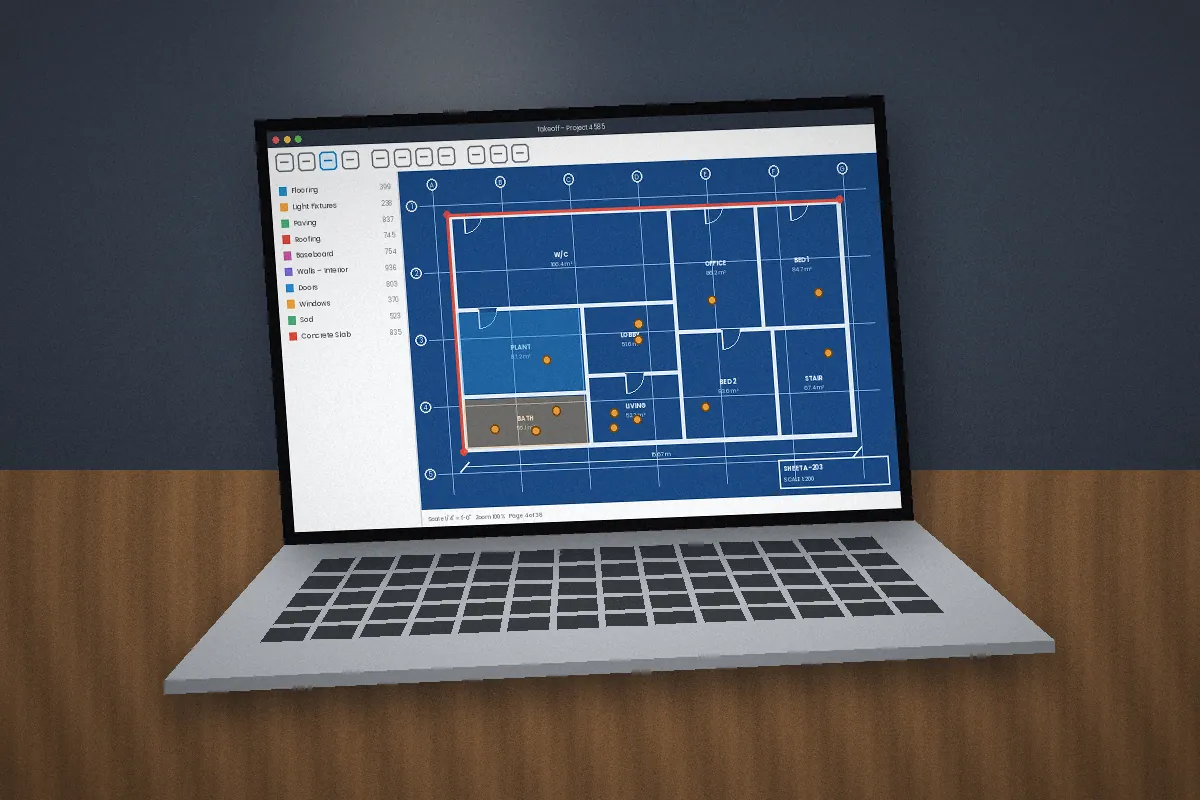
PlanSwift is built for Windows and cannot be installed on macOS directly. Estimators who work on a Mac still have options, because both of the usual routes put a full copy of Windows on the machine. The developer's own guidance points to Boot Camp or a virtual machine such as Parallels Desktop.
Option 1: Virtualisation with Parallels Desktop
Virtualisation runs Windows inside a window on macOS, alongside Mac applications. You install Parallels Desktop, create a Windows virtual machine, then install PlanSwift inside it exactly as you would on a PC.
- Advantages: no restart is needed to switch between systems, and files can be shared between macOS and Windows.
- Considerations: Windows needs its own licence, and the virtual machine shares the Mac's memory and processor, so generous hardware helps.
Allocate enough memory to the virtual machine. Choose an allocation that satisfies the relevant requirements while leaving resources for macOS.
Option 2: Boot Camp
Boot Camp installs Windows on a separate partition, and the Mac starts in either macOS or Windows. Windows uses the hardware directly, although practical performance and compatibility still depend on the model and drivers.
Apple Silicon Macs
On Apple silicon, virtualisation runs the ARM edition of Windows 11, which uses built-in emulation to run conventional Windows programs. Many desktop applications behave well under this arrangement, but it is not identical to a native PC, and components such as the Office link or licensing can behave differently. Test the trial thoroughly on your own drawings before relying on it for live bids.
Practical Tips
- Install a desktop copy of Excel inside Windows; the Mac version cannot serve as the PlanSwift link.
- Store active jobs inside the Windows environment or on a local shared folder, not on a slow network path.
- Keep Windows fully updated, as the developer expects for any supported installation.
- Use an external monitor if possible, since a laptop screen becomes crowded quickly.
Which Route Should You Choose?
| Situation | Suggested route |
|---|---|
| Intel Mac, maximum performance needed | Boot Camp |
| Intel Mac, frequent switching between systems | Parallels Desktop |
| Apple silicon Mac | Parallels Desktop with Windows 11 on ARM, tested carefully |
Identify Your Mac Before Choosing a Method
Start by checking the processor, installed memory and available storage in the Mac's system information. Intel and Apple silicon are different hardware platforms, so advice written for one should not be applied automatically to the other. Record the exact model and the version of macOS as well. Those details matter when checking the requirements of a virtualisation product, the Windows edition it can run and the peripherals used during estimating.
Do not make the decision from the PlanSwift installer alone. A workable arrangement involves several layers: Mac hardware, the method used to run Windows, Windows itself, PlanSwift and any required integration components. Each layer can have its own compatibility conditions. An application starting successfully is useful evidence, but it does not establish that the complete environment is suitable for a tender workflow or eligible for support.
Separate Technical Possibility from Support
There is a practical difference between an arrangement that can run a program and one that every relevant supplier will support. Before purchasing software or changing a business workstation, ask the vendors to confirm the intended configuration. Describe the hardware, processor architecture, Windows edition and PlanSwift release precisely. A general statement that an application works on a Mac may omit important conditions about how Windows is installed.
This distinction is especially important for Apple silicon. A Windows environment using a different processor architecture may depend on compatibility mechanisms for some applications or components. Do not assume that a drawing tool, an Office connection, a plugin and an activation component all behave identically. Establish a realistic test covering the features your business actually uses, and obtain confirmation of support wherever that assurance is necessary for the organisation.
Plan Resources for Two Operating Systems
A virtual machine shares the computer's resources with macOS. The host still needs memory and processing capacity for its own applications, while Windows needs enough capacity for PlanSwift, drawing files and any supporting software. Assigning nearly all available memory to Windows can make the Mac unresponsive; assigning too little can constrain the estimating environment. Start from the virtualisation vendor's guidance and test with a representative workload.
Storage planning should include the Windows installation, application files, updates, project data and backups. Virtual disks can grow as work accumulates, so the size of an empty installation is not a reliable guide to long-term requirements. Check free space on the host as well as inside Windows. A project may fail to save when either location becomes constrained, even if the other appears to have ample capacity.
Understand the Limitations of Boot Camp
Boot Camp is an Intel Mac route for starting Windows directly rather than running it inside macOS. Apple's documented installation procedure concerns Windows 10 on eligible Intel models. That history should not be treated as an automatic recommendation for a new workstation today. Check the operating system's support position, the computer's hardware eligibility and the requirements of the PlanSwift release you intend to use before choosing this approach.
A dual-boot arrangement also changes the working routine. Moving between macOS applications and Windows estimating software requires restarting, and files need an agreed storage and backup method across the two environments. Consider whether that interruption is acceptable during an ordinary day of drawing review, email and spreadsheet work. Evaluate the whole workflow rather than assuming that direct access to hardware is the only factor that matters.
Keep Excel Integration Inside the Tested Environment
If your estimating process requires PlanSwift's desktop Excel connection, include the Windows installation of Excel in the test plan. Opening a workbook in Excel for Mac is a different operation from connecting a Windows desktop application to Excel within Windows. Confirm the required integration components and installation procedure for the specific releases involved. Similar-looking workbooks can conceal a significant difference in how the applications communicate.
Begin with a disposable workbook and a small takeoff. Transfer a quantity, change the measurement, then confirm how the workbook responds. Save and reopen the files, test the required refresh process and inspect any security or add-in prompts. Only move to the company template after this basic connection works. If the template fails while the simple workbook succeeds, investigate its settings and formulas separately from the underlying Windows arrangement.
Choose a Clear Home for Active Jobs
Shared folders can make it convenient to move drawings between macOS and Windows, but convenience does not remove the need for a consistent data policy. Identify where active jobs will be stored, which account owns them and how they will be backed up. Avoid having several similarly named copies spread across the Mac desktop, a Windows folder and a synchronised drive. That situation makes it difficult to establish which estimate contains the latest work.
Test file access after a full restart, not just during the session in which the folders were configured. Check that the application can save and reopen a job under the ordinary user account. If files are exchanged with colleagues on Windows PCs, use the documented project transfer procedure and confirm that the recipient can open the result. A shared directory is not a substitute for testing the application's expected transfer process.
Build a Representative Acceptance Test
Use drawings that resemble your actual projects rather than a single lightweight demonstration page. Include a large sheet, several pages, a few assemblies and any Excel workflow the team depends on. Measure simple shapes with known answers, save the work and reopen it after restarting Windows. Check printing or report output as well. The test should reveal whether the entire estimating sequence works, from imported information to an intelligible result.
Assess everyday usability alongside correctness. Try the external monitor, mouse, keyboard shortcuts and display scaling that the estimator will use. Confirm that text and dialogs remain readable and that drawing navigation is comfortable. Record faults with the application versions and the steps required to reproduce them. A repeatable issue is easier to investigate than a general impression that the virtual machine sometimes feels slow.
Prepare Recovery and a Fallback Route
Back up project data through an agreed process that can recover individual jobs. If virtual machine snapshots are used, understand what they capture and how restoring one affects later work. A snapshot of the entire environment is not automatically a substitute for an independent project backup. Test recovery on a copy so that the team knows where restored files appear and which version they contain.
Before relying on the arrangement for deadlines, decide what happens if the Mac or Windows environment becomes unavailable. A supported Windows workstation may be the simpler fallback, provided licensing and project transfer have been planned. Include the cost of Windows, virtualisation, storage and support in the decision. The most suitable setup is the one that produces reliable, reviewable estimates within the organisation's working conditions, not simply the one that starts the application.
Keep the acceptance test results with the installation notes, including the drawings and application versions and plugins used. Repeat the essential checks after a significant update to Windows, macOS or the virtualisation software. A configuration that worked previously should still be reviewed when one of its supporting layers changes, particularly before a major submission deadline or the transfer of responsibility to another estimator.
FAQs
Can PlanSwift run directly in macOS?
No. It is a Windows desktop application, so a suitable Windows environment is required. Confirm the support position for your exact configuration.
Does Boot Camp work on Apple silicon?
No. Boot Camp is an Intel Mac route. Apple silicon requires a different approach, with compatibility and support checked separately.
Is a successful launch enough to approve the setup?
No. Test real drawings, saving, reopening, reports, required plugins and Excel integration before relying on it for estimating deadlines.
Conclusion
A Mac can run PlanSwift once Windows is available, either through Boot Camp on Intel models or through virtualisation. Check the operating system, hardware and vendor support position, then verify every essential feature before adopting the environment for real work.