 PlanSwift
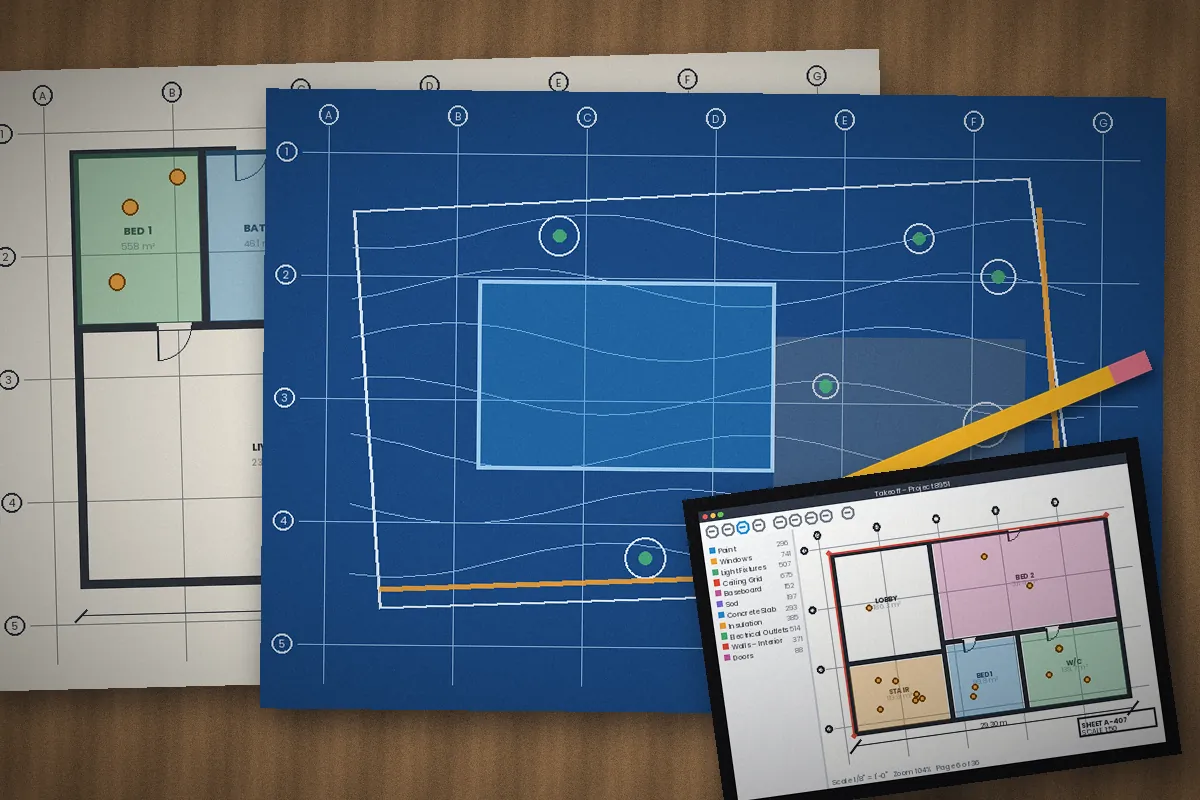
Many contracting businesses keep years of pricing logic in Excel: markups, overheads, supplier prices and summary sheets that management knows how to read. PlanSwift is designed to work alongside those workbooks rather than replace them, passing measured quantities into Excel where the final price is built.
What You Need
The Excel features rely on a desktop installation of Microsoft Excel on the same computer. For version 10.2, Excel must be able to handle the .xlsx and .xltx formats, which in practice means any reasonably modern release. The browser edition of Excel cannot serve as the link, because PlanSwift communicates with the installed program directly.
How the Link Works
In broad terms, PlanSwift sends selected takeoff items and their quantities into a workbook. The workbook can be a blank sheet or a prepared template. Because the connection is live, quantities can be refreshed after the drawings change, so revised plans do not mean retyping figures.
Designing a Good Template
A well-structured template keeps imported data separate from pricing logic. A common arrangement uses three areas:
- Quantities sheet – receives figures from PlanSwift and is never edited by hand.
- Pricing sheet – looks up those quantities, applies unit rates, waste and labour, and calculates cost.
- Summary sheet – totals each trade or package and applies overheads and margin.
With this separation, refreshing the quantities never overwrites a formula, and anyone reviewing the bid can follow the calculation from measurement to final figure.
Importing from Excel
The link also works in the other direction. Price lists and part catalogues maintained in Excel can be imported, which saves building large material libraries by hand inside PlanSwift.
When the Link Fails
If Excel options are unavailable or an export stalls, work through these checks:
- Confirm that a desktop copy of Excel is installed and opens normally on its own.
- Close every Excel window, including hidden instances shown in Task Manager, and try again.
- Check that Excel is not waiting on a dialog box, such as an activation or recovery prompt.
- Restart PlanSwift after installing or repairing Office, so it detects the change.
Good Habits
Name takeoff items in PlanSwift the way they should appear in the estimate, so the workbook reads clearly without renaming. Keep units consistent between the two programs, and record the plan revision in the workbook header so every figure can be traced back to the drawing it came from.
Separate Measurement from Commercial Judgement
A measured quantity and a tender price answer different questions. PlanSwift establishes the extent of work shown on the drawings, while a workbook may apply supplier rates, labour assumptions, preliminaries and margin. Treating the two as separate stages makes the estimate easier to review. If a quantity changes, the commercial logic should respond in a predictable way, without requiring someone to reconstruct how the original total was assembled.
Write down which information the connection will transfer and which information remains under the estimator's control. This includes item descriptions, units, quantities and any identifiers used to match rows. Do not assume that every property of an assembly will appear in every export method. Check the behaviour available in your release, then design the workbook around that confirmed behaviour. A modest, well-understood connection is more useful than an elaborate spreadsheet built on assumptions.
Choose Between a Snapshot and a Live Connection
An exported report can serve as a fixed record of quantities at a particular time. A live connection serves a different purpose: it supports an ongoing relationship between measurement and workbook values. Decide which result you need before selecting the workflow. A tender submission often requires an agreed snapshot, while an estimate still being developed may benefit from quantities that can be refreshed as the takeoff changes.
Label issued workbooks with the drawing revision and issue date. If the estimate remains connected to an active job, explain how an issued copy is protected from later changes. Keeping a separate submission record avoids confusion when revised drawings arrive after a price has been sent. Do not describe an ordinary file export as live merely because the data originally came from PlanSwift; verify the connection and refresh procedure in use.
Build Stable Item Identifiers
Descriptions are helpful to readers, but they can change during an estimate. A finish may acquire a clearer name or move into another trade package. If the workbook depends entirely on row position or a loosely written description, that change can break the relationship between quantity and price. Use a stable item code, and document how that code relates to the takeoff structure.
Consider a simple coding convention containing the trade, location and specification reference. Keep it short enough to read and consistent enough to sort. Avoid embedding information that changes frequently, such as the current unit rate, within the identifier. The aim is to preserve identity while allowing descriptions and commercial assumptions to evolve. Check duplicate codes before importing quantities so that two different items do not silently feed the same pricing line.
Control Units Before Applying Rates
A spreadsheet can calculate flawlessly and still produce the wrong price if the quantity and rate use different units. A measured area in square metres cannot be multiplied directly by a rate per square foot without conversion. Likewise, a supplier price per pack is not automatically a price per individual component. Put the unit beside each quantity and rate, and show conversions explicitly instead of hiding them within a long formula.
For example, suppose a net finish quantity is 120 square metres and the estimator applies an illustrative allowance of eight per cent. The working requirement becomes 129.6 square metres before any packaging rule is considered. If the material is sold in fixed coverage packs, calculate the pack count separately and round in accordance with the ordering requirement. Keeping these steps visible prevents waste, conversion and rounding from being applied twice in different worksheets.
Design Formulas That Survive Revisions
Use a small, clearly labelled input area and keep manual pricing assumptions away from imported values. A workbook should make it obvious which cells may be edited. If a quantity is overwritten temporarily, the next refresh may remove that adjustment without warning. Record any commercial allowance as a separate input or line item so that its purpose survives changes to the underlying measurement.
Test what happens when an item is added, deleted, renamed or moved. A formula that works for the first export may depend on a range that excludes later rows. Similarly, a summary may continue to reference a deleted line after the takeoff has been reorganised. Review the workbook's formulas using your organisation's spreadsheet standards and use an independent check for important totals. Cell formatting alone is not evidence that a calculation remains correct.
Test the Connection with Controlled Changes
Create a disposable job containing one area, one length and one count. Transfer those quantities using the documented procedure, then change only one measurement. Observe which workbook value changes and whether the totals respond as expected. Next, add a new item and remove another. These simple tests reveal how the relationship behaves without exposing a live estimate to accidental changes or making faults difficult to isolate.
Repeat the test after saving and reopening both applications. Check whether the connection requires a particular opening sequence, a selected job or an explicit refresh action in your version. Record those steps in a short team note. Where an add-in or integration component is required, confirm its installation with IT rather than repeatedly modifying the main workbook. The objective is a reproducible workflow that another estimator can follow on the same approved setup.
Investigate Problems in the Correct Order
When a transfer fails, first establish whether Excel opens and saves an ordinary workbook independently. Then check that the intended job and destination workbook are selected. Review pending dialogs, protected views and any integration messages before changing formulas. If a simple test workbook works but the company template does not, the evidence points towards the template or its settings rather than the entire PlanSwift installation.
Separate connection faults from calculation faults. Missing or unchanged quantities suggest one category; incorrect subtotals after a successful transfer suggest another. Note the exact step that fails and preserve a small example that reproduces it. Avoid changing application permissions, Office settings and workbook formulas simultaneously. Making one controlled change at a time gives the next reviewer useful evidence and reduces the chance of creating a second problem.
Prepare an Estimate That Can Be Audited
Before issuing the workbook, trace a sample of priced lines back to their drawing measurements. Check item codes, descriptions, units, allowances and rates along that route. Compare summary totals with the detailed sheets and investigate discrepancies. A second estimator should be able to understand why a figure exists without relying on the original author's memory. That is particularly important when procurement starts several months after tender preparation.
Retain the agreed workbook, the associated drawing issue and a suitable record of the takeoff together under the project's document controls. Make the issue status clear so that an internal working version is not mistaken for the submitted price. The connection between applications saves transcription effort, but the estimate still needs professional judgement. Its strength comes from transparent assumptions and controlled revisions as much as from the speed of transferring quantities.
FAQs
Is an exported workbook always a live link?
No. A static report and an active connection are different workflows. Test the selected method and label issued snapshots clearly.
Why should I avoid editing imported quantities?
A later refresh may replace those edits. Put commercial adjustments in separate, labelled cells or items so that their purpose remains visible.
What should I test before using a company template?
Transfer a few simple quantities, change one, add another and reopen the files. Confirm that quantities and formulas still behave as intended.
Conclusion
The Excel link lets PlanSwift handle measurement while Excel handles commercial judgement. A desktop copy of Excel, a template that separates quantities from pricing and a few disciplined habits keep that partnership reliable from the first draft to the final revision.